


We’ve made it easier for you and your team to access Click, Wesbeam’s online ordering system. You can now switch from a Gmail account to your work email to log in, keeping your Wesbeam ordering connected to the email you already use for everyday business. That means one less step when it’s time to place a Wesbeam order.
You can also add multiple logins to your customer account, so more than one team member can place orders directly with Wesbeam. That means greater flexibility, less reliance on internal handovers and more control over who can place orders.
Watch our step-by-step instructions to switch to your work email and add team login.

How to add multiple users and alternative emails
1. Login to your Click account using your existing Gmail credentials
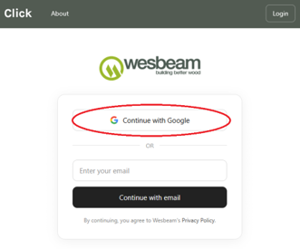
2. Select “Manage Logins” at the top of the screen

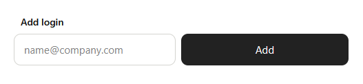
3. Add your work email, or another employees work email, under “Add login” and select “Add”
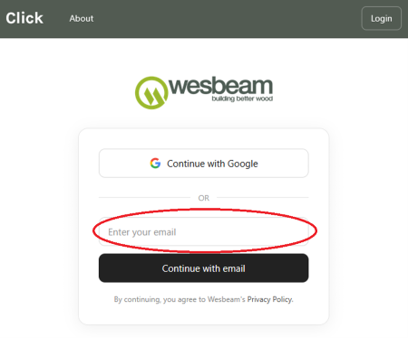
4. You can now login to your Click account by typing your work email into the “Enter your email” box, then click Continue with email.
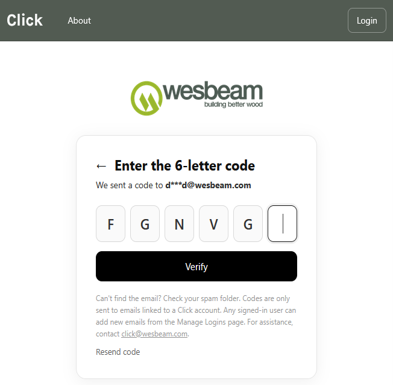
5. Click shows a page asking for a 6-letter code and confirms which email it was sent to. Open your inbox and look for an email from Click ([email protected]). If it isn't there, check your spam or junk folder. The email contains your login code.
The code expires after 10 minutes.
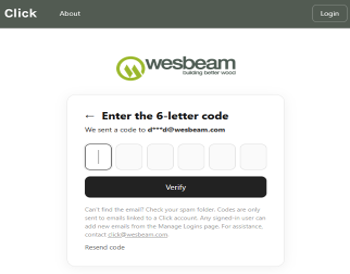
6. Go back to the Click login page and type the code into the boxes, then click Verify. You are now logged in.
Need a hand getting started? Contact your local account manager or email [email protected] for assistance with switching to your work email or adding team logins.
Need help?
Check your spam or junk folder in your email account, then click Resend code on the Click login page.
The code lasts for 10 minutes. If you do not enter the code within 10 minutes, return to the Click login page and select Resend code to get a new one.
Codes are only sent to emails linked to an active Click account. Ask an existing Click user at your workplace to add your email from the Manage Logins page, or contact [email protected].